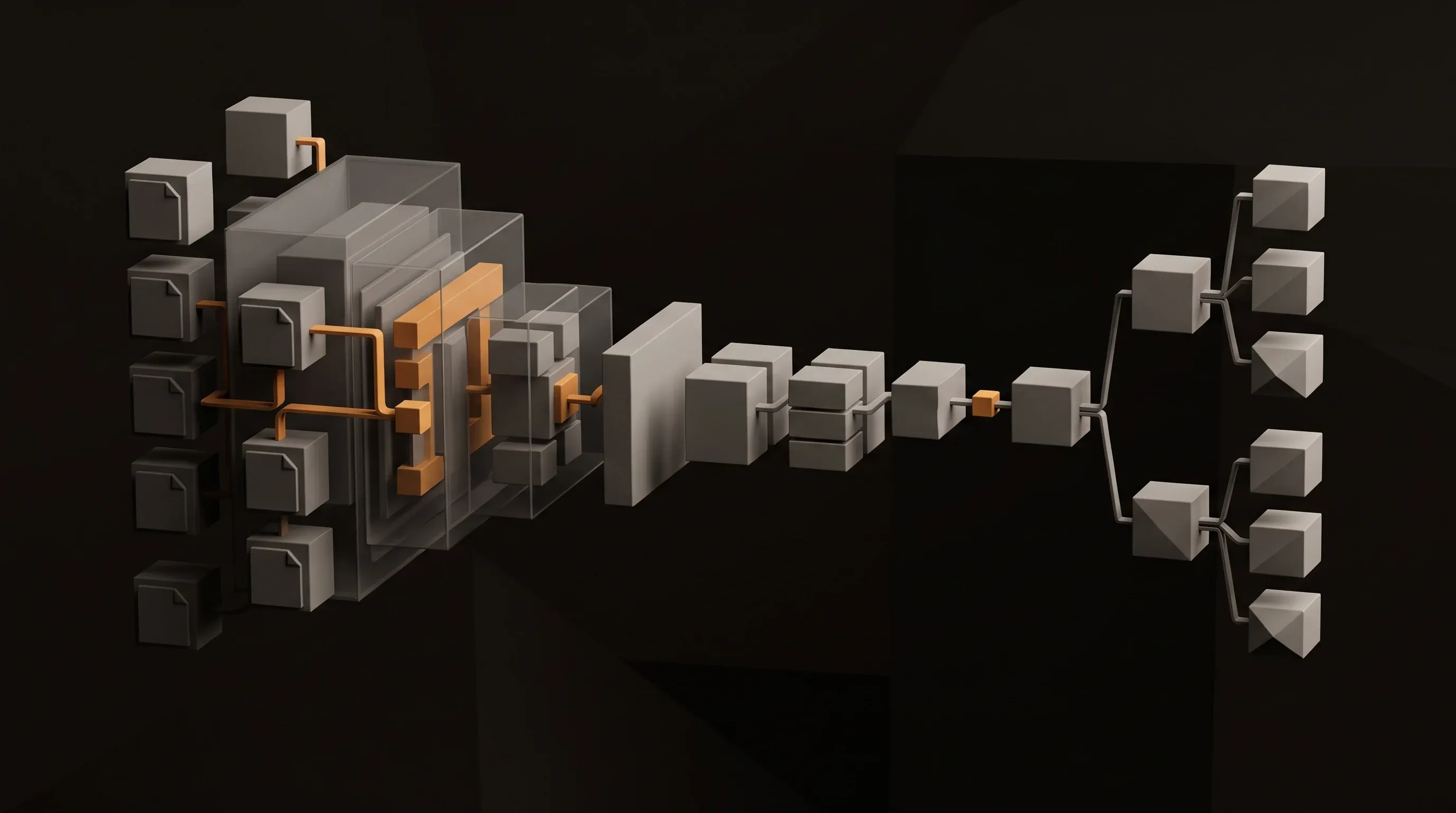
If you’ve been in the Linux or sysadmin world for more than a few years, you’ve probably hosted a WordPress site at some point. Maybe for a client, a project, or your own blog. You know the drill — pick a VPS, install LAMP or LEMP, configure PHP, set up MySQL, harden WordPress, install a caching plugin, a security plugin, a backup plugin, a SEO plugin, keep everything updated, and pray nothing breaks when WordPress decides to auto-update on a Tuesday morning.
I did it too. And then I stopped.
This site — linuxcore.dev — runs on Astro, deployed via GitHub to Cloudflare Pages. No PHP. No database. No server to patch. No plugin hell. The only recurring cost is the domain: around €12 per year. Everything else is free.
This article explains why I made the switch, how the stack works, and how you can set up the same thing yourself — even if you’ve never touched JavaScript frameworks before.
The Signal You Shouldn’t Ignore
Before I get into the technical side, there’s a story worth telling.
Joost de Valk built Yoast SEO — the WordPress plugin that, for over a decade, was the answer to “how do I do SEO on WordPress?” It’s installed on tens of millions of sites. If anyone had a reason to stay on WordPress, it was him.
He switched to Astro.
His personal blog now runs as a static site built with Astro and deployed on Cloudflare Pages. No database, no server, no PHP. And on the question of SEO — the thing his entire career was built around — he wrote that everything Yoast SEO does on WordPress, he can do directly in Astro. Sitemaps, meta tags, Open Graph, JSON-LD schema. All of it. And it’s actually easier, because you control the raw HTML output without plugins fighting each other over your <head> tag.
When the person who created the most famous WordPress SEO plugin walks away from WordPress, that’s worth paying attention to.
Why This Stack Makes Sense for Linux People Specifically
Most articles about Astro are written for JavaScript developers or web designers. This one isn’t.
If you’re a sysadmin, homelab enthusiast, or Linux infrastructure person, the Astro + GitHub + Cloudflare stack maps perfectly onto how you already think and work:
It’s file-based. Your entire site is a directory of files — Markdown for content, components for layout, config files for settings. No GUI required, no database to query, no admin panel to log into. You can manage the whole thing from a terminal.
It’s Git-native. Every change is a commit. Deployments are just git pushes. You get a full history of every article, every config change, every layout tweak. Rolling back is git revert. That’s a workflow Linux people understand intuitively.
There’s nothing to patch at runtime. A static site has no PHP interpreter, no database connection, no plugin ecosystem to keep current. The attack surface is essentially zero. There’s no WordPress xmlrpc.php to lock down, no login page to brute-force protect, no plugin with an unpatched CVE sitting on a public-facing server.
The tooling is CLI-first. You scaffold a new project with npm create astro@latest, run a dev server with npm run dev, and deploy by pushing to GitHub. It’s the kind of workflow that feels natural if you spend your day in a terminal.
What Is Astro, Actually?
Astro is a web framework built for content-heavy sites — blogs, documentation, marketing pages, portfolios. Its core philosophy is straightforward: ship as little JavaScript to the browser as possible.
Most modern JavaScript frameworks (React, Vue, Next.js) were designed for building interactive applications. When you use them to build a blog, you’re using a tool built for dynamic apps to serve mostly static content. The result is often a bloated page that sends megabytes of JavaScript to the browser to render text that was already known at build time.
Astro takes the opposite approach. By default, it builds your pages at compile time and ships plain HTML and CSS. No JavaScript framework runtime in the browser. If you need interactivity somewhere — a search bar, a dark mode toggle, a newsletter form — you can add it selectively using what Astro calls “islands.” Everything else stays as static HTML.
A 100/100 Lighthouse score is realistic and not particularly difficult to maintain.
The Stack: What Each Piece Does
Astro — The Framework
Astro handles everything related to building your site: routing, templating, Markdown/MDX processing, image optimisation, sitemap generation, RSS feeds, and the compilation step that turns your source files into static HTML.
You write your content in Markdown files, your layout in .astro component files, and Astro wires it all together. The official documentation is excellent.
GitHub — Version Control and CI/CD Trigger
Your Astro project lives in a GitHub repository. Every time you push a commit — whether it’s a new article, a layout change, or a config tweak — Cloudflare Pages picks it up automatically and starts a new build.
You also get branch previews for free: every pull request or non-main branch gets its own preview URL, so you can check how a new article looks before it goes live.
Cloudflare Pages — Hosting and CDN
Cloudflare Pages connects to your GitHub repository, runs npm run build on every push to your main branch, and deploys the output to Cloudflare’s global CDN.
| Feature | Free Tier |
|---|---|
| Sites | Unlimited |
| Builds per month | 500 |
| Custom domains | Unlimited |
| HTTPS | Included |
| Bandwidth | Unlimited |
| CDN edge locations | 300+ worldwide |
Setting Up the Stack: A Practical Quickstart
Prerequisites
- Node.js installed — I use nvm:
nvm install 22 && nvm use 22 - A GitHub account and the
ghCLI (sudo apt install gh) - A Cloudflare account (free tier is fine)
- A domain registered anywhere — Cloudflare registrar works well
Step 1: Scaffold the Project
npm create astro@latest my-site
cd my-site
Astro’s setup wizard walks you through initial configuration. Choose the blog starter if you’re building a content site.
Step 2: Run the Dev Server
npm run devOpen http://localhost:4321. Every file you save is hot-reloaded automatically.
Step 3: Understand the Project Structure
src/
  content/        ← your Markdown articles live here
    blog/
      my-first-post.md
  pages/          ← routes map directly to files
    index.astro
    blog/
      [slug].astro
  layouts/        ← shared page templates
  components/     ← reusable UI pieces
public/           ← static assets
astro.config.mjs  ← framework configuration
Step 4: Push to GitHub
git init
git add .
git commit -m "Initial Astro site"
gh repo create my-site --public --source=. --push
Step 5: Connect Cloudflare Pages
- Log into your Cloudflare dashboard
- Go to Workers & Pages → Create → Pages → Connect to Git
- Select your GitHub repository
- Set the build command to
npm run build - Set the output directory to
dist - Click Save and Deploy
Done. Your site is live within two minutes of that first build completing.
What About SEO Without Yoast?
Yoast SEO exists because WordPress doesn’t give you clean control over your HTML output. In Astro, you control the HTML directly. Your layout component is just an HTML template with variables:
---
const { title, description, canonicalUrl } = Astro.props;
---
<head>
  <title>{title}</title>
  <meta name="description" content={description} />
  <link rel="canonical" href={canonicalUrl} />
  <meta property="og:title" content={title} />
</head>
You write this once in your layout, pass the right values from each page’s frontmatter, and every article gets proper meta tags automatically. No plugin to update, no compatibility issues.
The Real Numbers
| Component | Cost |
|---|---|
| Domain (linuxcore.dev via Cloudflare) | ~€12/year |
| Cloudflare Pages hosting | €0 |
| GitHub repository | €0 |
| SSL certificate | €0 |
| CDN and global delivery | €0 |
| Total | ~€12/year |
Compare that to a typical WordPress setup: a basic VPS runs €5–15/month, plus hosting, a theme, caching plugin, security plugin, backup plugin. You’re easily at €200–600/year before counting maintenance time.
What Astro Can’t Do (The Honest Tradeoffs)
No admin panel. Writing an article means opening a text editor, creating a Markdown file, and running a git push. For people comfortable with that workflow, it’s faster than a WordPress editor. For anyone who needs a visual CMS, it’s a non-starter — though Decap CMS or Keystatic can be layered on top.
No dynamic server-side logic by default. If you need user accounts, personalised content, or real-time data, you’ll need external services or Cloudflare Pages Functions.
JavaScript ecosystem. Coming from a Linux/sysadmin background, npm and Node.js feel foreign at first. It gets easier quickly, but the initial friction is real.
Build time. Every content update requires a rebuild and redeployment — about 30–60 seconds on Cloudflare’s servers.
What’s Next in This Series
- Adding GitHub-based comments with Giscus — zero external dependencies, free
- Contact forms with Cloudflare Pages Functions and MailChannels
- Building a shop with Printify and Stripe in Astro
- SEO in Astro without plugins — sitemaps, structured data, and OG images from scratch
- Newsletter integration with MailerLite or Buttondown
All of these are things I’ve built for linuxcore.dev, so these won’t be theoretical walkthroughs — they’ll be practical guides based on what actually works in production.
Questions about the Astro setup? Drop a comment below — powered by Giscus, backed by GitHub Discussions.
[discussion]
Comments are powered by Giscus — backed by GitHub Discussions. Sign in with GitHub to join the conversation.